
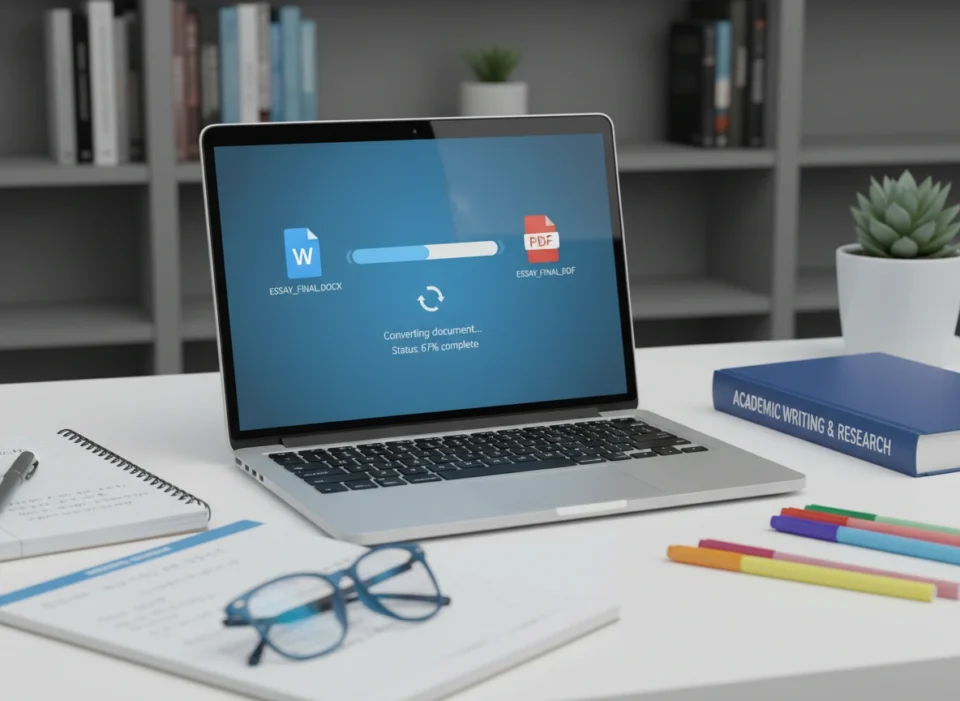
Imagine spending hours perfecting a term paper. You have meticulously aligned every image, selected the perfect font, and ensured your margins are flawless. You hit save, email the Word document to your professor, and relax. A week later, you receive a grade far lower than expected with a note: “Formatting was a mess. Images were floating over text, and the fonts were unreadable.”
This scenario is a nightmare for students, but it happens more often than you might think. The culprit is rarely the student’s effort, but rather the file format itself. This is where the Portable Document Format (PDF) becomes a lifesaver. Mastering the conversion from Word to PDF is not just a technical trick; it is an essential academic and professional skill that ensures your work is viewed exactly as you intended.
This article explores why every student needs to master this simple conversion, the practical applications of PDF files in academia and beyond, and provides a comprehensive guide on how to convert your documents using the most popular tools available.
Why Format Matters in Academic Success
In the academic world, presentation is often as critical as content. Professors and teaching assistants grade hundreds of papers. If a document opens with broken formatting, it creates immediate friction. It signals a lack of attention to detail, even if the research itself is stellar.
Microsoft Word is a powerful tool for creating content, but it is not always reliable for distributing it. A Word document (.docx) is dynamic. It relies on the local computer’s settings to display content. If the recipient doesn’t have the specific font you used installed on their machine, Word will substitute it with a default font, potentially throwing off your pagination and layout. If they open your file on a different version of Word, or on a completely different operating system like macOS or Linux, the formatting can shift dramatically.
PDFs, on the other hand, are static. A PDF captures your document exactly as it is—fonts, images, layout, and all—and freezes it in time. When your professor opens a PDF, they see precisely what you saw on your screen before you hit send. This consistency is the primary reason why PDF conversion is a non-negotiable skill for serious students.
Practical Applications for Students
The utility of PDFs extends far beyond just submitting essays. Here are several scenarios where converting Word to PDF is crucial for student success:
1. Submitting Final Assignments
Most university portals (like Canvas, Blackboard, or Moodle) accept various file types, but PDF is the gold standard. It prevents accidental edits during the grading process and ensures your citations remain on the correct page.
2. Creating Resumes and CVs
As you apply for internships or part-time jobs, your resume is your first impression. sending a resume as a Word document is a rookie mistake. Applicant Tracking Systems (ATS) handle PDFs well, and human recruiters appreciate a clean layout that doesn’t break when opened on a mobile device.
3. Sharing Group Project Notes
When collaborating with classmates who might use different software (some on Google Docs, others on Pages or Word), sharing final notes or study guides as PDFs ensures everyone can read the material regardless of the device they use.
4. Printing Documents
If you need to print a poster or a thesis at a campus print shop, bringing a PDF ensures the printer interprets the file correctly. Word documents often cause “reflow” issues when opened on print shop computers, leading to wasted money and paper.
How to Convert Word to PDF: A Step-by-Step Guide
Fortunately, converting documents is straightforward. You do not need expensive software to do it. Here are the most common methods used by students today.
Method 1: Using Microsoft Word (Desktop App)
If you have Microsoft Word installed, the capability is built directly into the “Save” or “Export” function. This is often the most reliable method as it preserves complex formatting best.
For Windows Users:
- Open your document in Microsoft Word.
- Click the File tab in the top-left corner.
- Select Save As from the left-hand menu.
- Choose the location where you want to save the file.
- In the “Save as type” dropdown menu, select PDF (*.pdf).
- Click Save.
For Mac Users:
- Open the document in Word for Mac.
- Click File in the menu bar.
- Select Save As.
- In the “File Format” dropdown, choose PDF.
- Click Export.
Method 2: Using Google Docs
Many students prefer Google Docs for its cloud-based collaboration features. Converting a Google Doc to PDF is simple and requires no extra plugins.
- Open your document in Google Docs.
- Click File in the top menu.
- Hover over Download.
- Select PDF Document (.pdf) from the list.
- The file will automatically download to your computer’s designated download folder.
Note: Be sure to check the PDF after downloading. Occasionally, Google Docs formatting can shift slightly during conversion, especially with complex tables or images.
Method 3: Using Online Converters
If you do not have access to Word and are working with a file someone sent you, online converters are a quick solution. Websites like Smallpdf, iLovePDF, or Adobe’s free online tool are popular choices.
- Navigate to a reputable online converter site.
- Click the button labeled Choose File or Select Word Files.
- Upload the document from your computer.
- Wait a moment for the server to process the conversion.
- Click Download to save your new PDF.
Security Tip: Be cautious when using free online converters for documents containing sensitive personal information, such as social security numbers or private financial data. For standard essays, they are perfectly safe.
Ensuring Formatting Consistency
Converting to PDF usually locks your formatting, but you must ensure the formatting is correct before you convert. A PDF will permanently capture errors just as effectively as it captures perfection.
Check Your Margins and Breaks
Before converting, view your document in “Print Layout” mode. Ensure that page breaks fall where you intend them to. If a heading is stranded at the bottom of a page while the text starts on the next, insert a manual Page Break (Ctrl+Enter or Cmd+Enter) rather than hitting “Enter” repeatedly.
Verify Image Resolution
Sometimes, during conversion, images are compressed to reduce file size. If your assignment requires high-resolution diagrams or photos (common in biology or art history), check your conversion settings. In Microsoft Word, before saving as a PDF, you can click “More Options” and select “Optimize for: Standard (publishing online and printing)” rather than “Minimum size.”
Embed Fonts
Standard fonts like Times New Roman or Arial rarely cause issues. However, if you use a unique decorative font for a presentation title, you must ensure the font is embedded in the file. Most PDF converters do this automatically, but it is worth double-checking the final PDF to ensure your cool typography didn’t turn into generic text.
The Long-Term Professional Benefit
Mastering file management and document conversion is a “soft skill” that translates directly to the workplace. In a professional setting, sending a contract, a proposal, or a design proof as a Word document is often seen as amateurish. It invites unauthorized editing and looks unfinished.
By treating your academic submissions with the same rigor as professional deliverables, you build habits that will serve you well in your career. Employers value candidates who understand digital workflows and can deliver polished, finalized documents.
Conclusion
The transition from a student who simply writes a paper to a student who professionally packages their work is marked by attention to detail. Word to PDF conversion is a small technical step with massive implications for how your work is perceived and graded.
Whether you are submitting a freshman English essay or a doctoral dissertation, the reliability of the PDF format protects your hard work. It ensures that the hours you spent formatting are respected and that your content is delivered with clarity.
Make it a habit today. Before you hit “submit” on your next assignment, take the extra thirty seconds to convert your file, review the PDF, and send a document that reflects your best effort. It is a simple skill that sets the foundation for professional excellence.
